






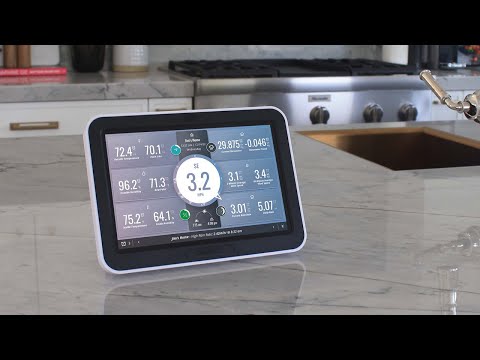
WeatherLink Console - SKU 6313
Free Shipping Available
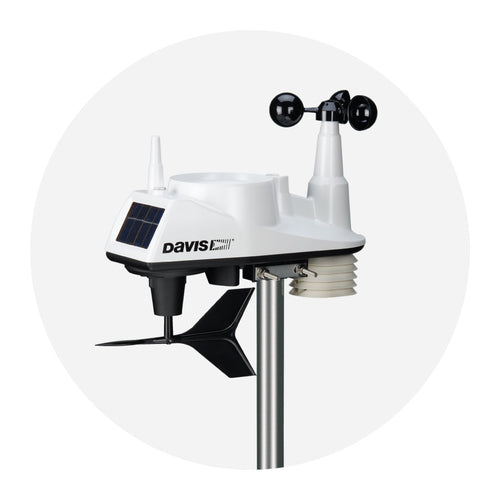
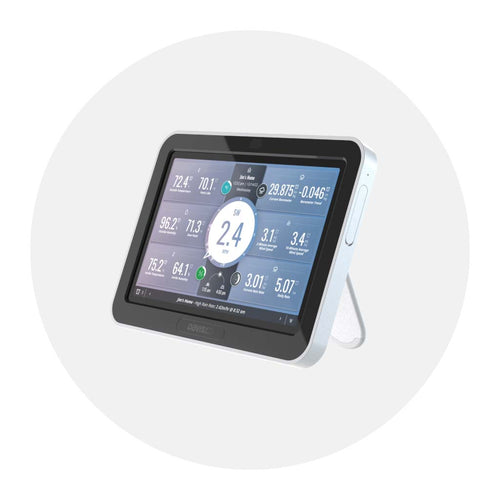
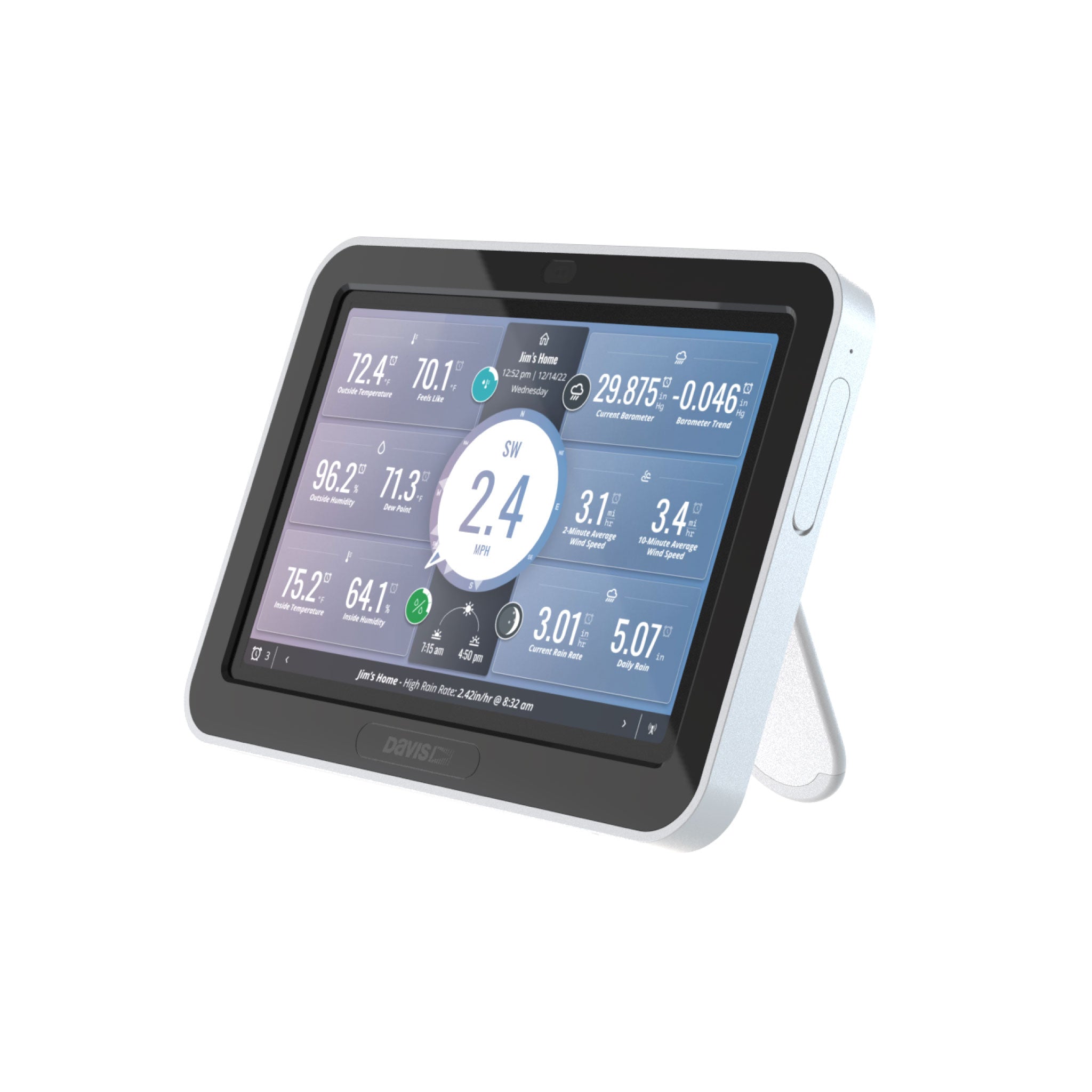
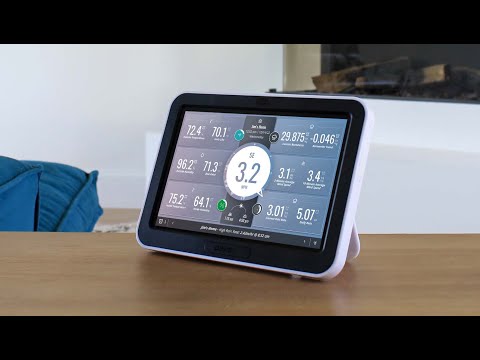
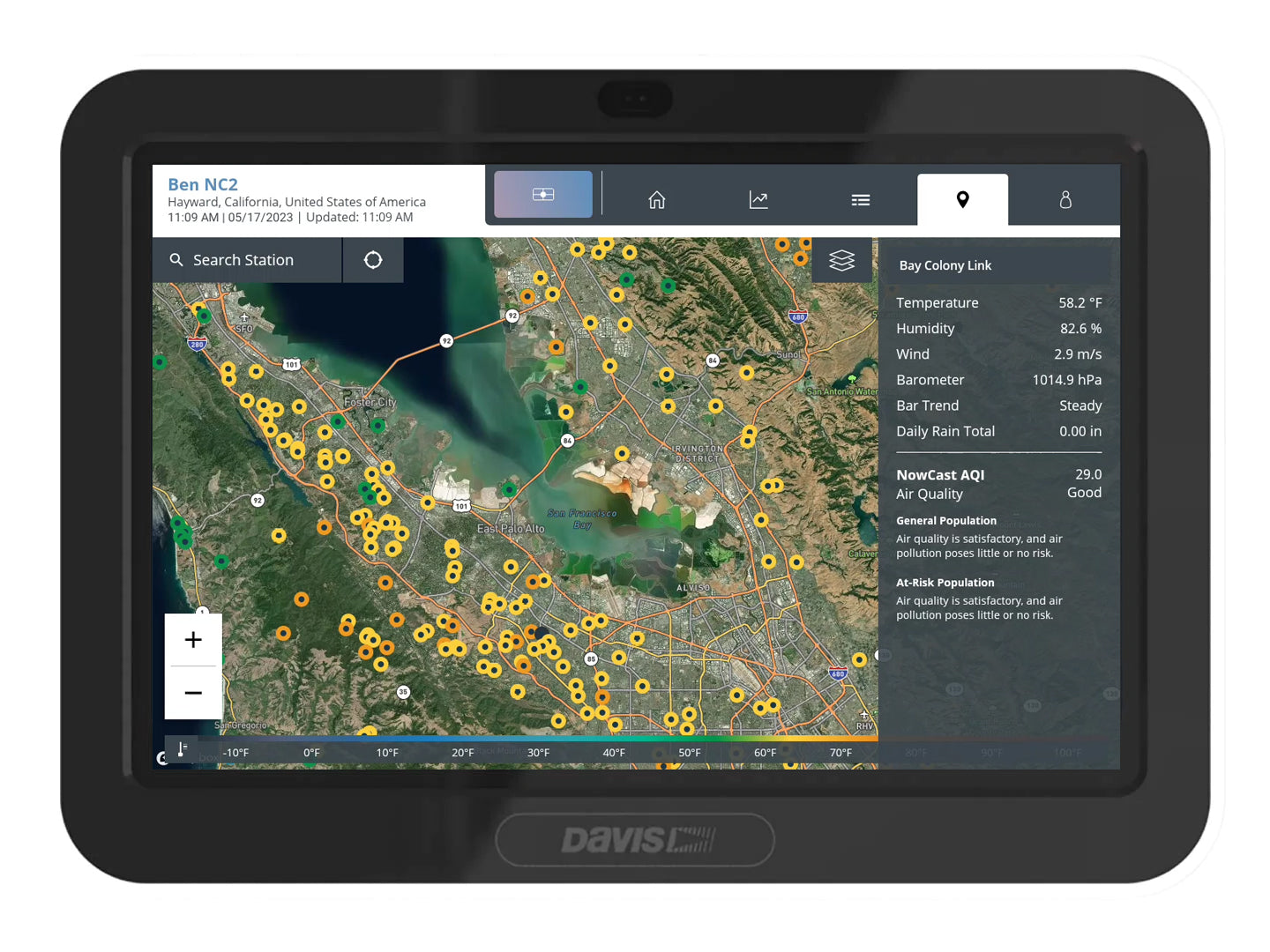
The WeatherLink Console places all the data from your Vantage Pro2 or Vantage Vue sensor suite weather station right at your fingertips. One device gives you instantaneous access to the information you need and the ability to do deep analysis, all from a single, convenient display with an intuitive and easy-to-understand touchscreen. From viewing current and historical data, creating graphs and setting alarms, calculating indexes and reviewing forecasts, the WeatherLink Console helps you keep track of conditions so you can make better decisions about your recreation, garden, home maintenance, and more.
Highlights Click here to learn more about the product.
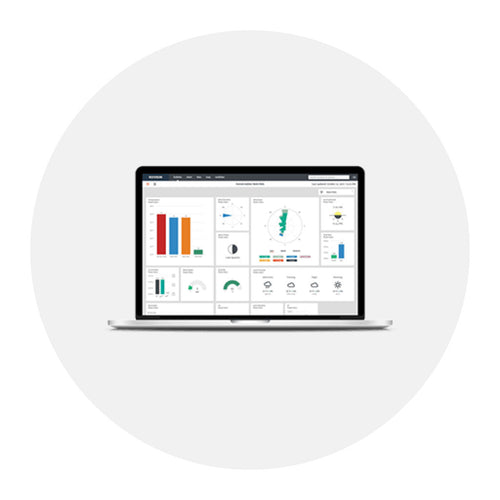
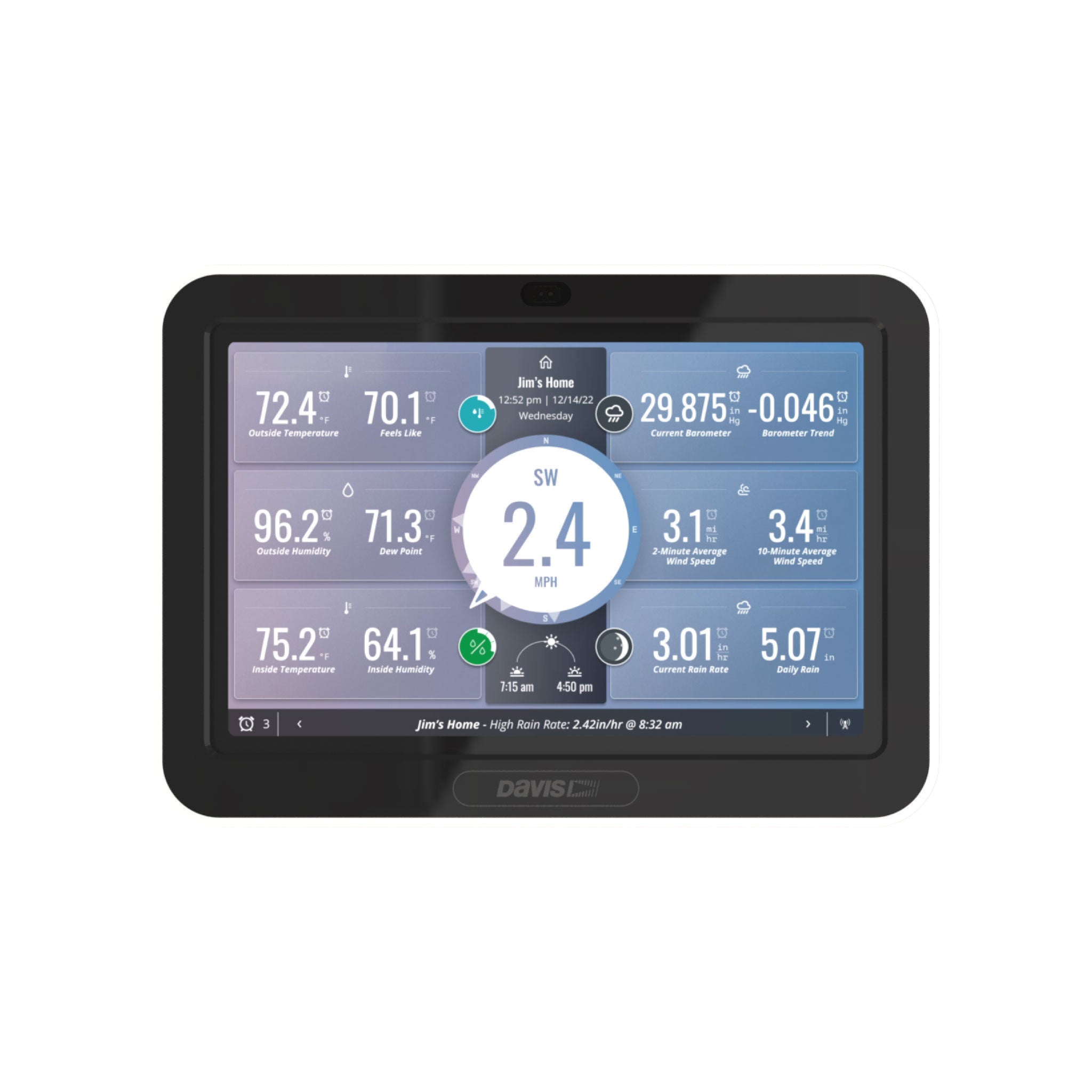
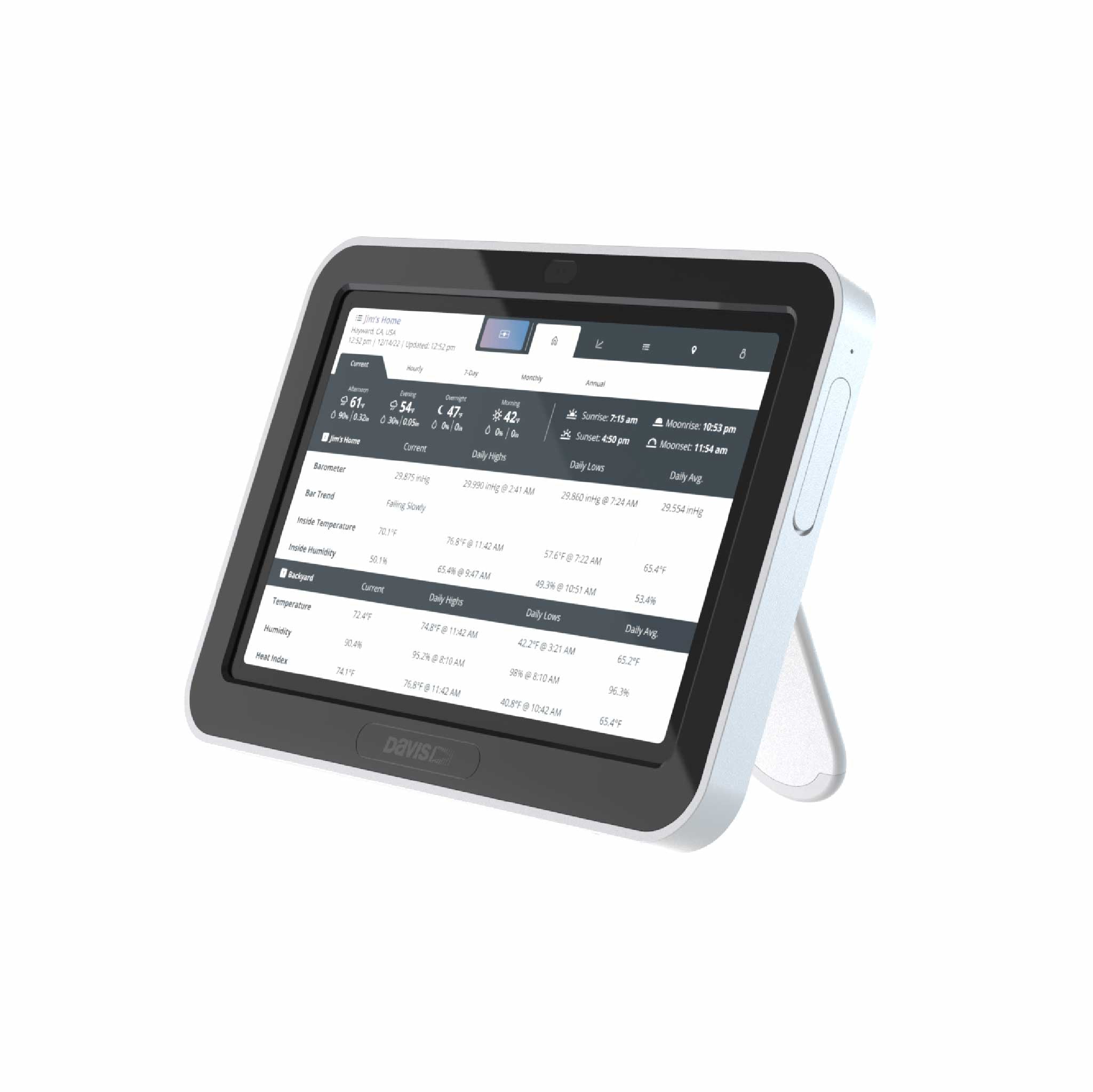
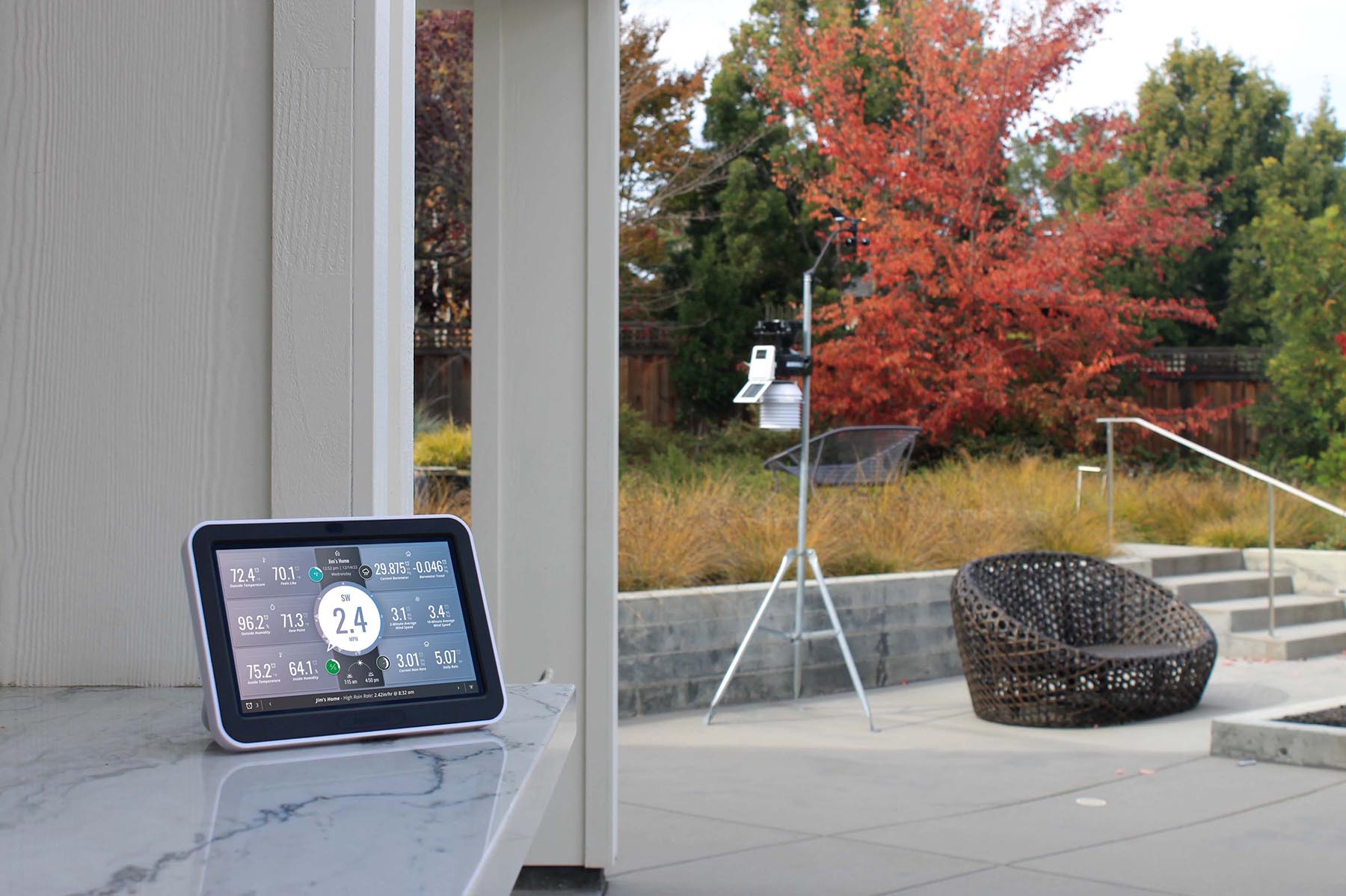
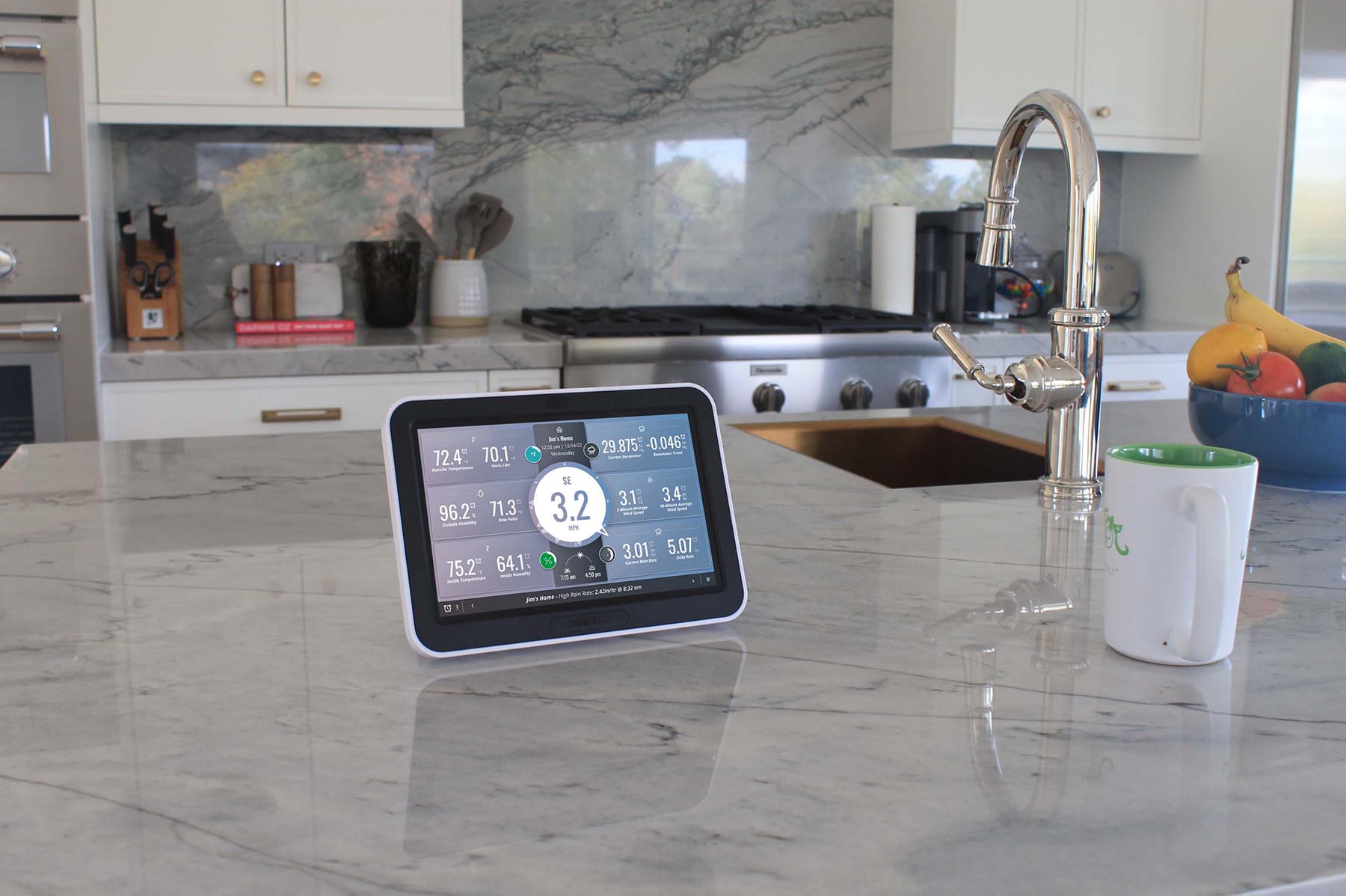
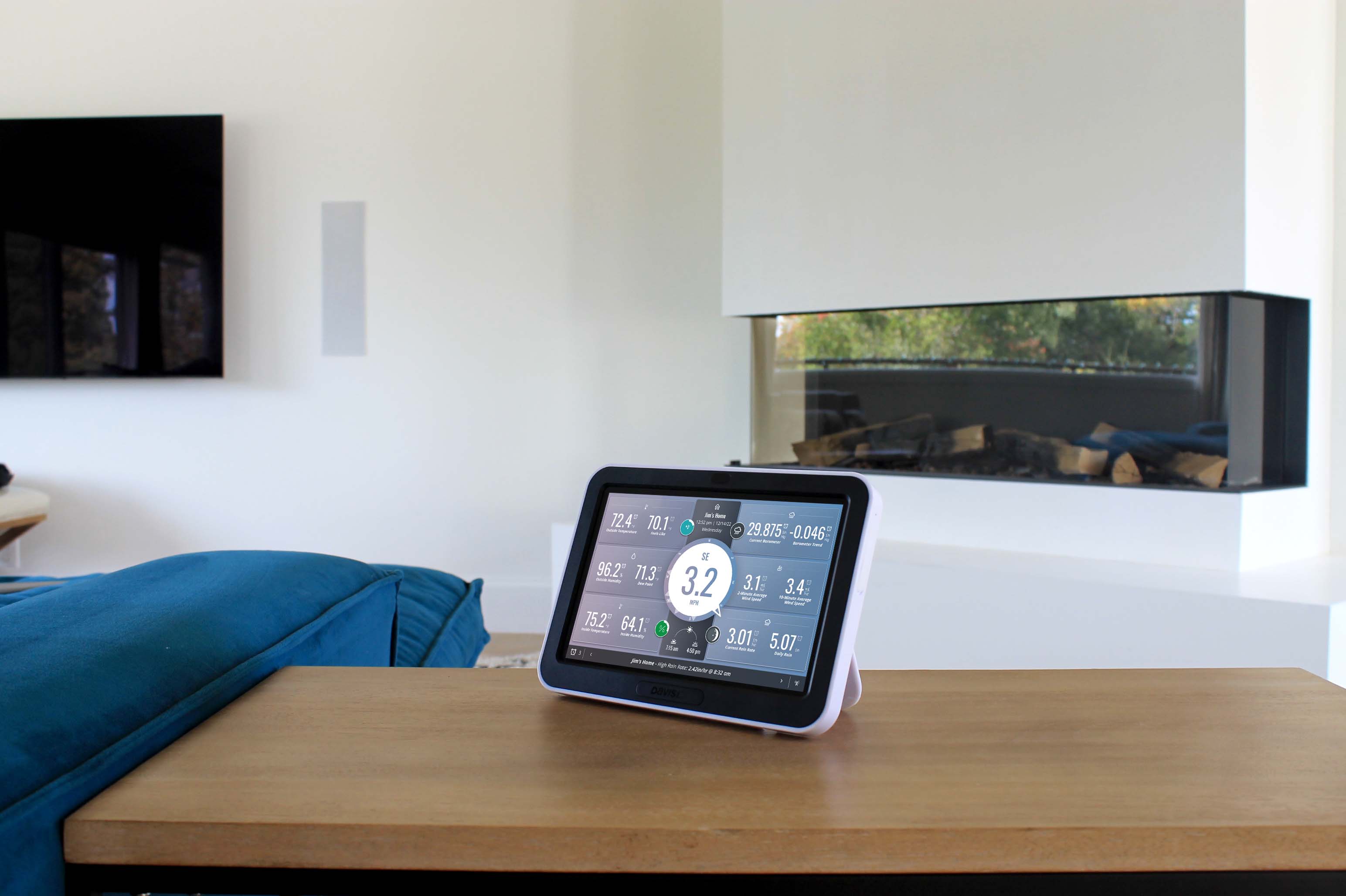
The brilliant, HD touchscreen allows you to easily navigate and analyze your hyperlocal weather data or view the latest conditions from anywhere in the room. The dynamic dashboard can be customized to see at-a-glance up to 21 parameters – from temperature to wind to rain. You can set hundreds of alarms to get notified when conditions that matter to you change, such as when temperatures begin approaching a critical point for outdoor work or when wind speeds reach a certain level. With a full database of historical data stored right on the console, the console offers easy access to graphs of the last 24 hours of data, last month, or the previous year.
The WeatherLink Console is a fully functional and powerful data display, storage, and analysis tool on its own – no Wi-Fi required. Or you can connect to Wi-Fi to join the WeatherLink community and upload and share data safely and securely. Use a free WeatherLink account to log in to all WeatherLink data viewing products and access all of your data on your phone or computer. Upgrade to Pro or Pro+ for more detailed analysis, charting, and mapping of data or to share your data with family, friends, the WeatherLink community, and beyond.
- Easily navigate, view, and analyze data with the vibrant, HD color touchscreen.
- Customize the dashboard to see at-a-glance inside and outside temperature and humidity, barometric pressure, wind speed and direction, rainfall, dewpoint, moon phase, highs and lows, and more.
- Use the full database of historical records to create over 100 graphs for last 24 hours, days, months, or years.
- Set hundreds of alarms to warn of dangers such as high wind, freezing temperatures, high rain rate, heat index, and more.
- Receive and display data from your local network – no Wi-Fi required. Or use Wi-Fi to join the WeatherLink community and upload and share data.
- Track detailed hourly and daily forecasts for the next 7 days when connected to the WeatherLink Cloud.
- See data from up to 8 transmitting sensors or sensor suites in one location. Choose from 80+ sensors to customize your own personal weather network.
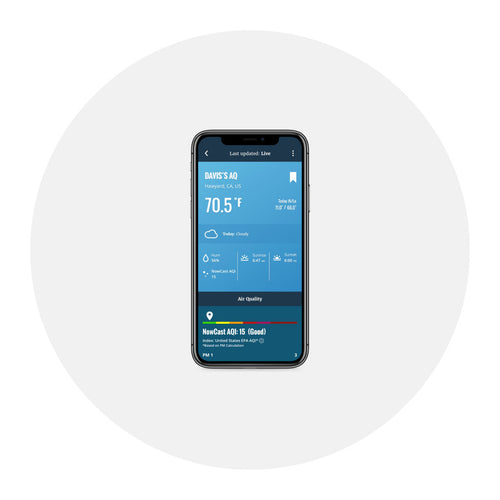
- Add an AirLink air quality sensor to a WeatherLink Console. See how.
- View conditions and details for stations worldwide on your screen.
- See the current conditions from your remote weather station on the console.
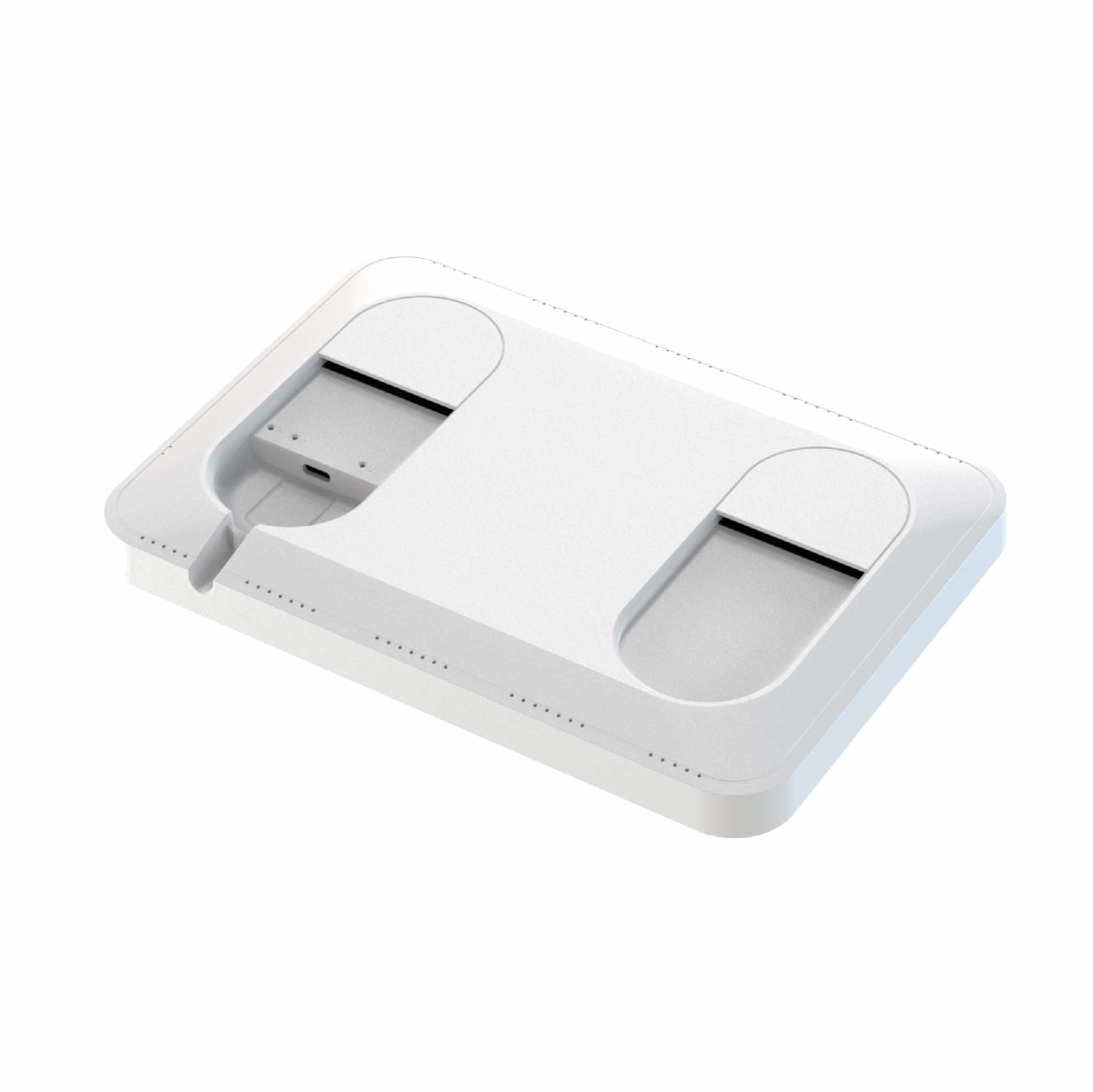
- Protect against data loss during power outages with integrated lithium-ion battery.
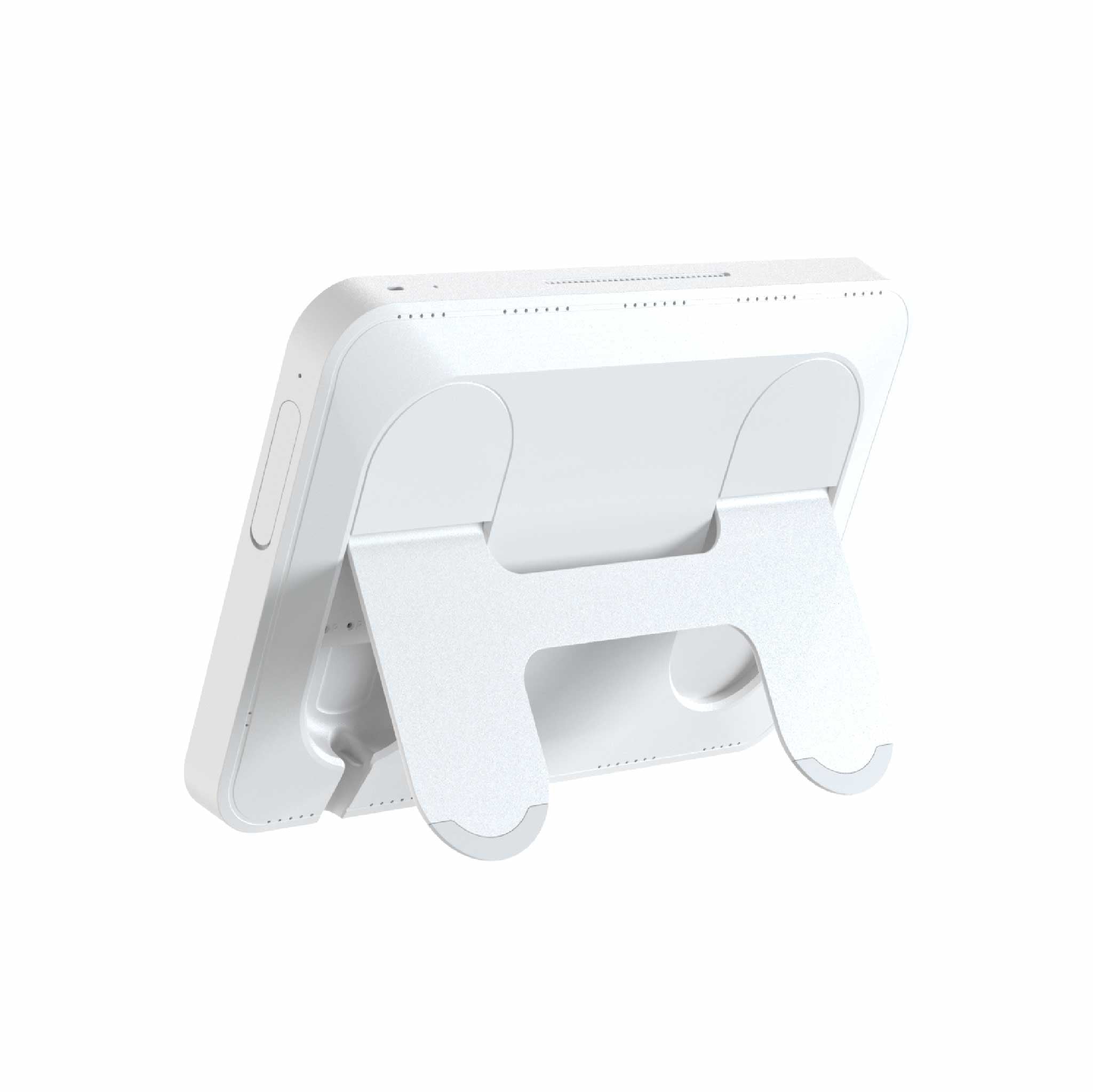
- Add a second console to your system to view data in multiple rooms.
- Compatible with multiple smart home systems including Amazon Alexa.
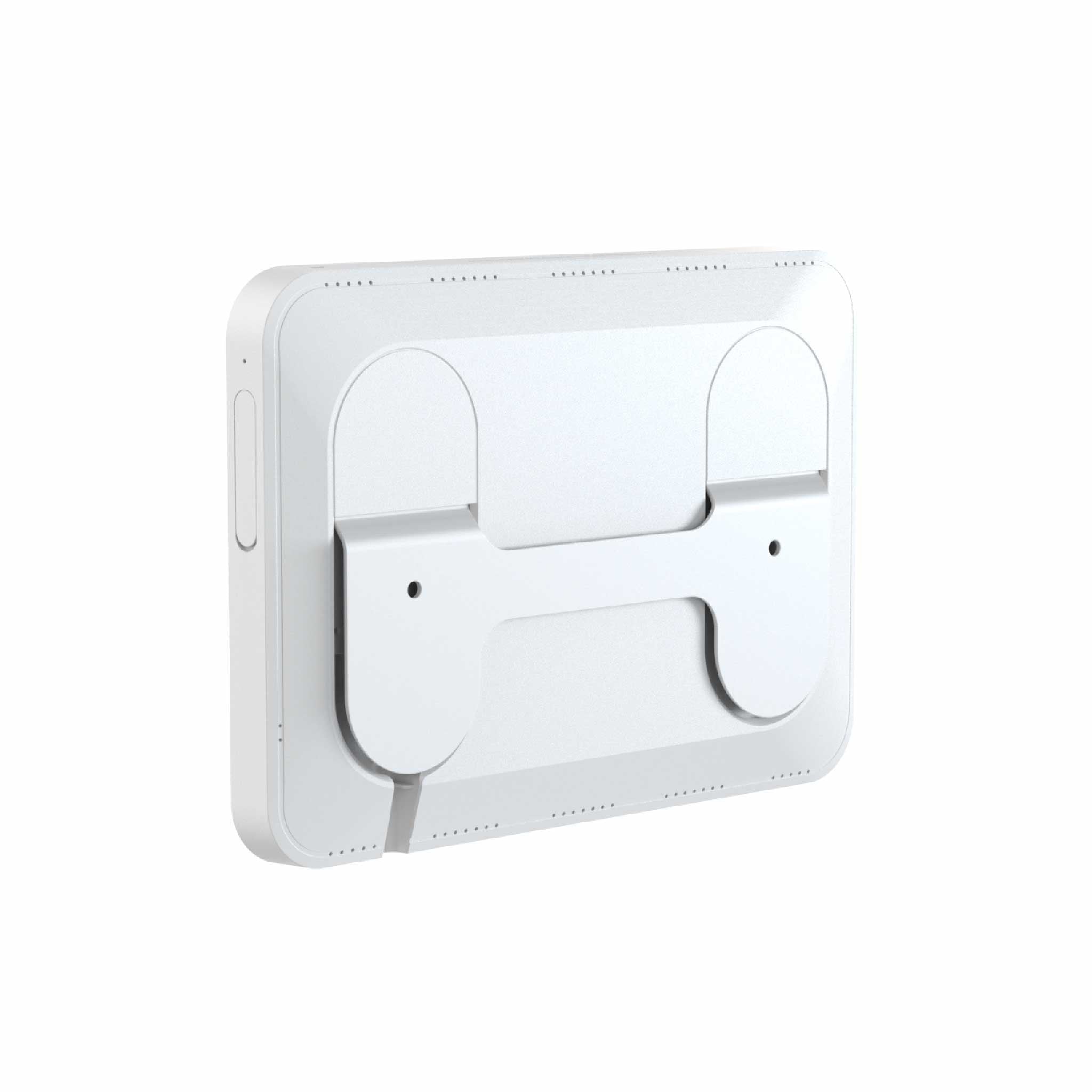
- Console Size: 8.75" x 6" x 0.75" (210mm x 152mm x 19mm)
- Display Area: 6.75" x 4.25" (171mm x 107mm)